
Tracking lot or serial number products with FBA orders
When selling products tracked by lots or unique serial numbers via the Fulfilled By Amazon FBA feature, Amazon’s API does not send the specific lot or unique serial number used for the sale. The lack of information triggers a synchronization failure in Axis.
To successfully set up an Amazon FBA order, configure a product kit in Axis based on the original Amazon product. When a new FBA order syncs, Axis sells the product kit, which prevents the error that occurs with the tracked product.
When resupplying the Amazon Fulfillment center,
transfer the tracked product to the WH/Amazon location. This records the movement in traceability
reports and accounts for inventory consumption at the point of transfer rather than the point of
sale.
Note
The WH/Amazon location is automatically created as a default location when the first Amazon
account is linked.
Under this system, the quantity of the product kits remains negative indefinitely. Treat this as a standard byproduct of the bypass, as the actual stock levels are managed through the initial fulfillment center transfer.
Important
This setup does not track the specific lot or unique serial number used for the sale. It only ensures that the FBA order can be processed without synchronization failures.
Settings
The following apps are essential for the product kit workflow:
Sales app: Enables connecting an Amazon Seller account to Axis.
Inventory app: Allows for product replenishment by warehouse location.
Manufacturing app: Enables BoM creation for products and product kits.
Create a product kit
To enable accurate tracking, create a product kit for the existing Amazon product. When a new FBA order syncs, Axis sells the kit, which prevents the error that occurs with the tracked product.
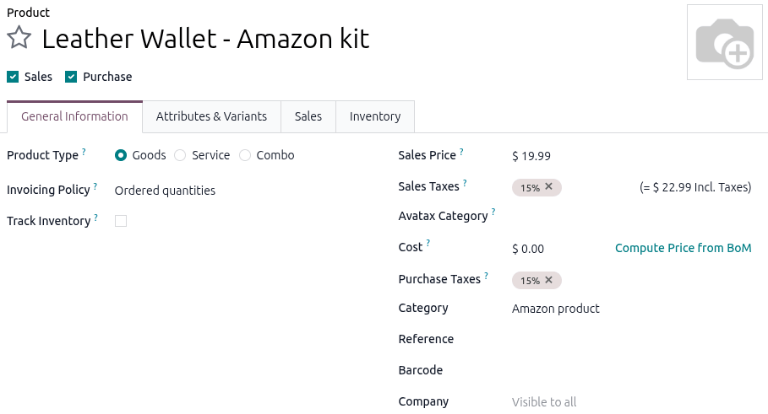
Navigate to and click New. Then, create a kit as a product that represents the Amazon item.
Important
Never enable Track Inventory for the product kit.
Link the Amazon item SKU to the product kit
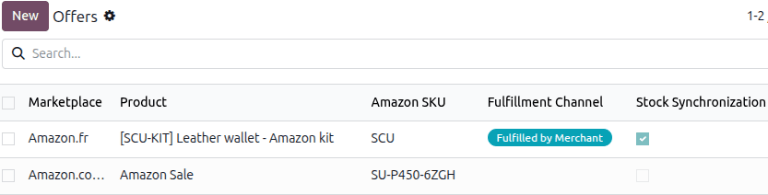
Next, go to the and click New. Enter the desired Amazon market in the Marketplace column, and select the product kit in the Product column. In the Amazon SKU column, enter the SKU of the existing Amazon product.
Note
This method removes the link between the Amazon SKU and the tracked product. Breaking this connection is necessary because Axis cannot automatically assign specific tracking numbers during the sync process.
Keeping this link active causes a synchronization failure for every FBA order. By disconnecting them, the system bypasses the tracking requirement and allows the sync to complete.
Create the BoM for the product kit
Navigate to the product kit by clicking the and select the product kit. Click the Bill of Materials smart button and create a kit BoM.
In the Components tab, click Add a line and type in the name of the Amazon product that is tracked by lots or a unique serial number.
Important
The Amazon product must be the sole component of the kit BoM.
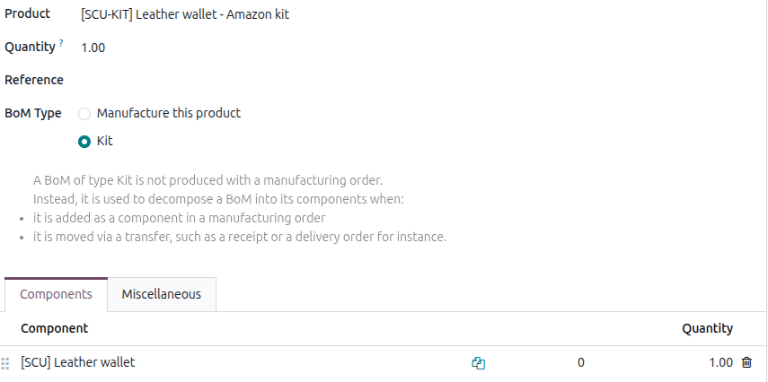
Now the Amazon product can be processed and tracked accurately in the Sales app by using the kit product and its associated BoM.