
Optional products
The use of optional products is a marketing strategy that involves the cross-selling of useful and related products alongside a desired core product. For instance, when a business configures optional products in their Axis database, an eCommerce or Website customer could be suggested a mouse and keyboard or an extended warranty when they add a laptop to their shopping cart.
Optional products are automatically suggested during the quotation process whenever an associated core product is added to a quote. They are also suggested in eCommerce interactions when a customer adds an associated core product to their shopping cart.
Note
Optional products differ from accessory and alternative products in terms of where they are displayed during the customer’s online shopping journey.
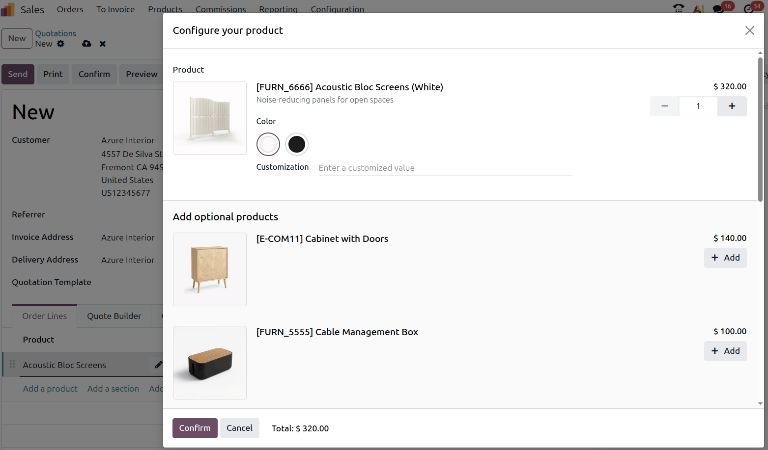
Optional products as they appear during the quotation process.
Configuring optional products
With the Axis Sales app, it is possible to add optional products directly to product forms. To add an optional product to a product form, navigate to and choose a product.
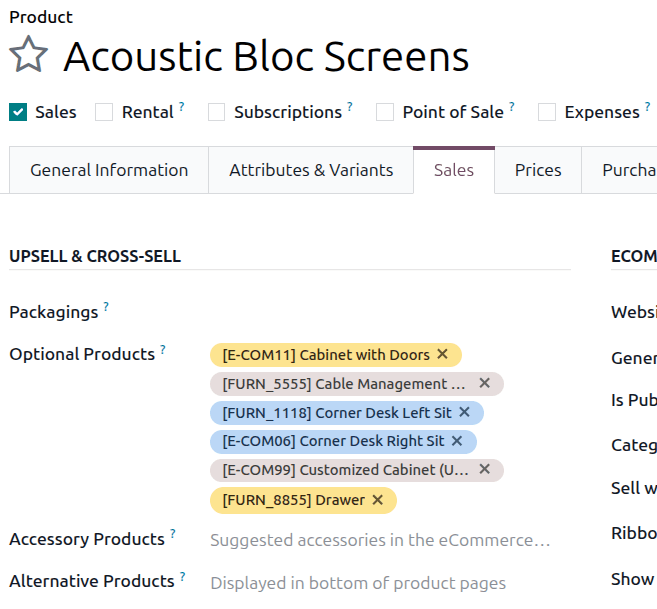
Ensure that the product’s Sales checkbox is checked and click the Sales tab. Under Upsell & Cross-sell heading, the Optional Products drop-down menu allows for optional products to be set. Products will be displayed in alphabetical order. If the desired product isn’t readily visible, type its name in the field to bring it up, then select it to add it as an optional product.
To delete an optional product from the product form, simply click the (Delete) icon.
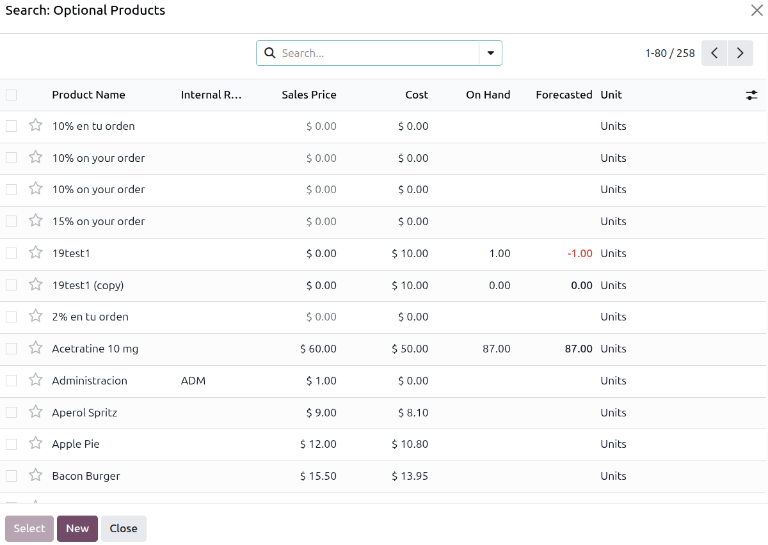
Additional products can also be added to a core product by clicking Search more…. This opens the Search: Optional Products form, which displays all products in the catalog and includes the New button to create a new product. Multiple products may be selected as optional products at once when using this form by clicking their checkboxes and then clicking Select.
Setting optional product sections in quotations
When developing a quotation for customers, entire sections of the quotation can be set as optional products, even if they haven’t been configured in the product form. To create a section, click the Add a section link and enter its desired name in the Enter a description field. Click the (drop-down menu) and choose Set Optional.
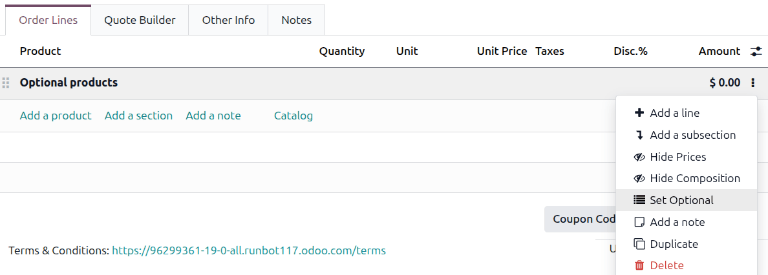
Once a section is set to optional, the font color changes to reflect its status. All products within
that section default to a quantity of 0, ensuring they are not included in the total cost
automatically. Both portal users (such as customers or vendors) and employees with access to create
quotations and sales orders can update these quantities. Once a quantity is set to 1 or more, the
product is added to the quote total.
Once an optional product section has been created in a quotation, users who have been granted portal access can interact with the quotation there. They can view the quotation and decide whether or not to add the optional products to their final sales order.

See also