
New employees
When a new employee is hired, the first step is to create a new employee record. This record is a centralized place where all important information about the employee is stored, including general information, job history and skills, various work information, personal details, payroll-related information, and various settings that affect integrations with other apps in the database.
To begin, open the app, then click the New button in the upper-left corner. Doing so reveals a blank employee form.
Proceed to fill out the required information, along with any additional details.
Tip
The employee form automatically saves as data is entered. However, the form can be saved manually at any time by clicking the (Save manually) icon.
General information
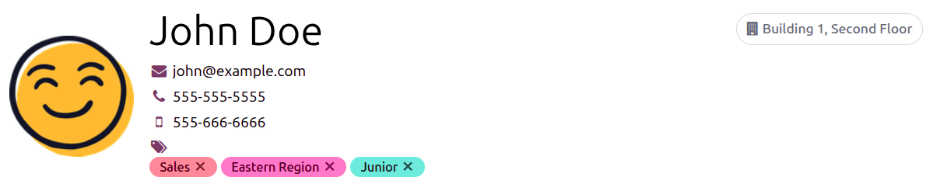
Fill out the following employee details in the top section of the employee form.
Employee’s Name: Enter the employee’s name. This field is required.
(Work Email): Enter the employee’s work email address.
(Work Phone): Enter the employee’s work phone number.
(Work Mobile): Enter the employee’s work mobile number.
(Tags): Select any tags from the drop-down menu to add relevant tags to the employee. Any tag can be created in this field by typing it in. Once created, the new tag is available for all employee records. There is no limit to the amount of tags that can be added on an employee form.
Photo: Upload a photo of the employee in the photo placeholder.
Work tab
This tab is visible for all employees, and does not require any other apps to be installed.
Work
Company: Select the company the new employee was hired by using the drop-down menu, or create a new company by typing the name in the field, and clicking Create or Create and edit… from the mini drop-down menu that appears. This field is required, but only appears when in a multi-company database.
Department: Select the employee’s department from the drop-down menu.
Job Position: Select the employee’s job position from the drop-down menu. If using the Recruitment app, this list reflects configured job positions.
Job Title: This field is automatically populated with the selection made in the Job Position field. Adjust the text, if desired, to best reflect the employee’s role.
Example
Specific details can be added in the Job Title field, if desired.
For example, a sales representative position configured as Sales Associate in the Recruitment app can be selected for the Job Position field.
The Job Title field can be more specific, such as
Sales Associate - Subscriptionsif the employee is focused solely on subscription sales.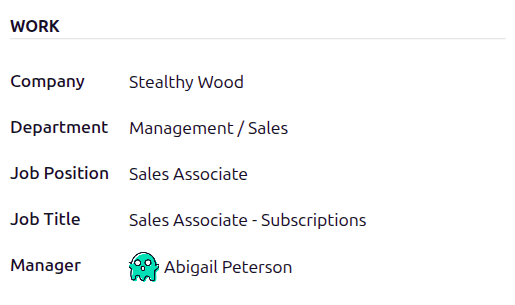
Manager: Select the employee’s manager using the drop-down menu.
Location
Work Address: Select the Work Address from the drop-down menu. The current company populates this field, by default. To modify the address, hover over the first line (if there are multiple lines) of the address to reveal an (Internal Link) arrow. Click the (Internal Link) arrow to open up the company form, and make any edits. Use the breadcrumb links to navigate back to the new employee form when done.
If a new work address is needed, add the address by typing it in the field, then click Create (new address) to add the address, or Create and edit… to add the new address and edit the address form.
Work Location: Select where the employee works using the drop-down menu. The default options are Home, Office, or Other.
To add a new location, type in the location name, then click Create (new location) to add the location, or Create and edit… to add the location, assign a Work Address, and a Cover Image.
Usual work location
This section states where the employee is expected to work on any given workday. Using the drop-down menu for each day of the work week, select where the employee works that day. The selected location is reflected on the employee’s Kanban card, indicating their location that day.
Use the drop-down menu to select the default location the employee works, for each day of the week. The default options are Home, Office, or Other.
A new location can be typed into the field, then click either Create (new location) to add the location, or Create and edit… to add the new location and edit the form.
After edits are done, click Save & Close, and the new location is added, and populates the field.
Leave the field blank (Unspecified) for non-working days, such as Saturday and Sunday.
Note
It is also possible to add or modify work locations by navigating to . To modify a location, click on an existing location, then make any changes on the form.
Click New to create a new location, then enter the following information on the form. All fields are required.
Work Location: Enter the name for the location. This can be as general or specific as needed, such as
HomeorBuilding 1, Second Floor, respectively.Work Address: Using the drop-down menu, select the address for the location.
Cover Image: Click on the icon to select it for the Cover Image. Options are a (home) icon, an (building) icon, and a (map marker) icon.
Company: Using the drop-down menu, select the company the location applies to. The current company populates this field, by default. This field only appears in a multi-company database.

Note
Enter any relevant notes in this field.
Organization chart
The related departments appear in this section, illustrating where in the company the employee works.
Note
After a Department is selected, the department’s configured manager automatically populates the Manager field.
Tip
To make edits to the selected Department, Manager, or Company, click the (Internal link) arrow next to the respective selection. The (Internal link) arrow opens the selected form, allowing for modifications. Click Save after any edits are made.
Resumé tab
Resumé
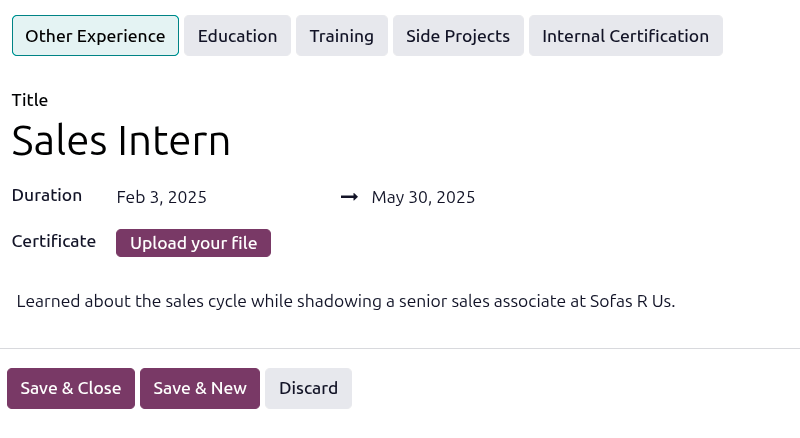
Enter the employee’s work history in the Resumé tab. Each resumé line must be entered individually. When creating an entry for the first time, click Create Resume Lines, and a Create Resumé Line form appears. After an entry is added, the Create Resume Lines button is replaced with an ADD button. Enter the following information for each entry:
Type: Click the corresponding button to reflect the type of experience being added. The available options are Other Experience, Education, Training, or Internal Certification.
Title: Type in the title from the previous work experience.
Duration: Enter the start and end dates for the work experience using the calendar module.
Certificate: If there is a relevant certificate to attach, click the Upload your file button, select the desired file, and click Select. The file name appears in the field, not an image of the certificate.
Description: Enter any relevant details in this field.
Once all the information is entered, click the Save & Close button if there is only one entry to add, or click the Save & New button to save the current entry and create another resumé line.
Note
After the new employee form is saved, the current position and company is automatically added to
the Resumé tab, with the end date listed as Current.
Skills & certifications
An employee’s skills and certifications can be entered in the Resumé tab in the same manner that a resumé line is created.
To add a skill to an employee record, the skill type must first be configured. By default, Axis comes with two Skill Types preconfigured: Languages and Soft Skills. Configure the rest of the skill types before adding any skills to the employee record.
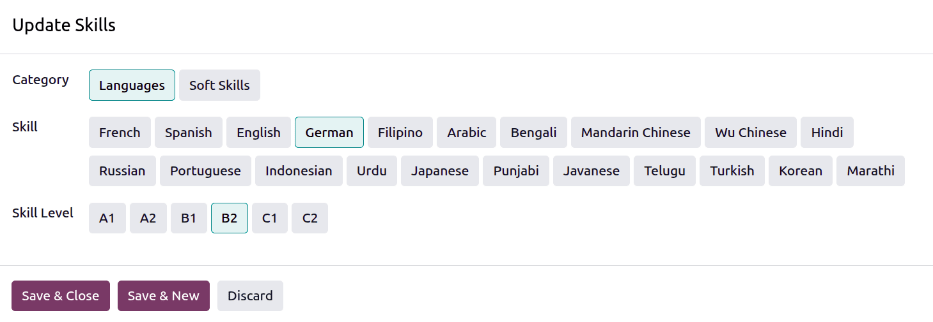
When adding the first skill to an employee record, a Pick a skill from the list button appears in the Skills section of the Resumé tab. Click the Pick a skill from the list button, and a blank Update Skills pop-up window loads. Configure the following information for each skill:
Category: Select a skill type by clicking it.
Skill: After selecting the Category, all corresponding skills associated with that selected Category appear in individual buttons. For example, selecting Language as the Skill Type presents a variety of languages to select from in the Skills section. Click the appropriate preconfigured skill from the list.
Important
If the desired skill does not appear in the list, it is not possible to add the new skill from this window. New skills must be added from the Skill Types dashboard.
Skill Level: Pre-defined skill levels associated with the selected Category appear. Click on a Skill Level to select it. Skill levels can be created and modified from the Skill Types dashboard.
Click the Save & Close button if there is only one skill to add, or click the Save & New button to save the current entry and immediately add another skill.
At any point, a new line can be added by clicking the ADD button.
Important
Only users with Officer: Manage all employees or Administrator rights for the Employees app can add or edit skills.
Skill types
To add a skill to an employee’s form, the Skill Types must be configured. Navigate to to view the currently configured skill types and create new skill types.
Note
The default skill of Languages is preconfigured with twenty-one skills, and the default Soft Skills is preconfigured with fifteen skills.
Click the New button in the upper-left corner, and a new Skill Type form loads. Fill out the following details for the new skill type. Repeat this for all the needed skill types.
Skill Type: Enter the name of the skill type. This acts as the parent category for more specific skills and should be generic.
Color: Click on the existing color to view the available colors. Click the desired color to select it.
Certification: Click the toggle to indicate the skill is a certification. The toggle turns green, indicating it is active and the skill can be added to the certifications tab.
Skills: Click Add a line and enter the Name for the new skill, then repeat for all other needed skills.
Levels: Click Add a line, and enter a Name and Progress percentage (
0-100) for each level.Set a Default Level by clicking the toggle on the desired line (only one level can be selected). The toggle turns green to indicate the default level. Typically, the lowest level is chosen, but any level can be selected.
Example
To add math skills in yellow, enter
Mathin the Skill Type field, and click the colored circle next to Color, and select yellow. Then, in the Skills field, enterAlgebra,Calculus, andTrigonometry. Next, in the Levels field, enterBeginner,Intermediate, andExpert, with the Progress listed as25,50, and100, respectively. Click Set Default on theBeginnerline to set this as the default skill level.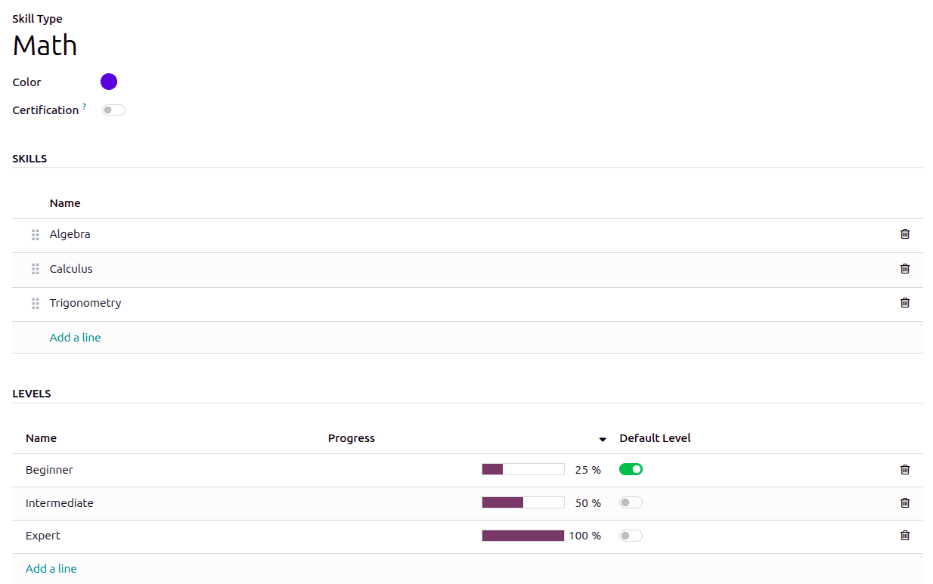
Tip
Once the form is completely filled out, click the (Save manually) icon at the top of the screen, and the Levels rearrange in descending order, with the highest level at the top, and the lowest at the bottom, regardless of the default level and the order they were entered.
Certifications tab
This tab houses all the employee’s certifications, which can be important for employees who are required to hold specific certifications to perform their job, such as a CPA certification for accountants, or a CSM certification for a construction manager.
The tab lists each Certification in a line, and displays the validity period in the From and To fields.
Note
This tab only appears if at least one skill type is configured as certification. When adding certifications, only skill types marked as a certification can be selected.
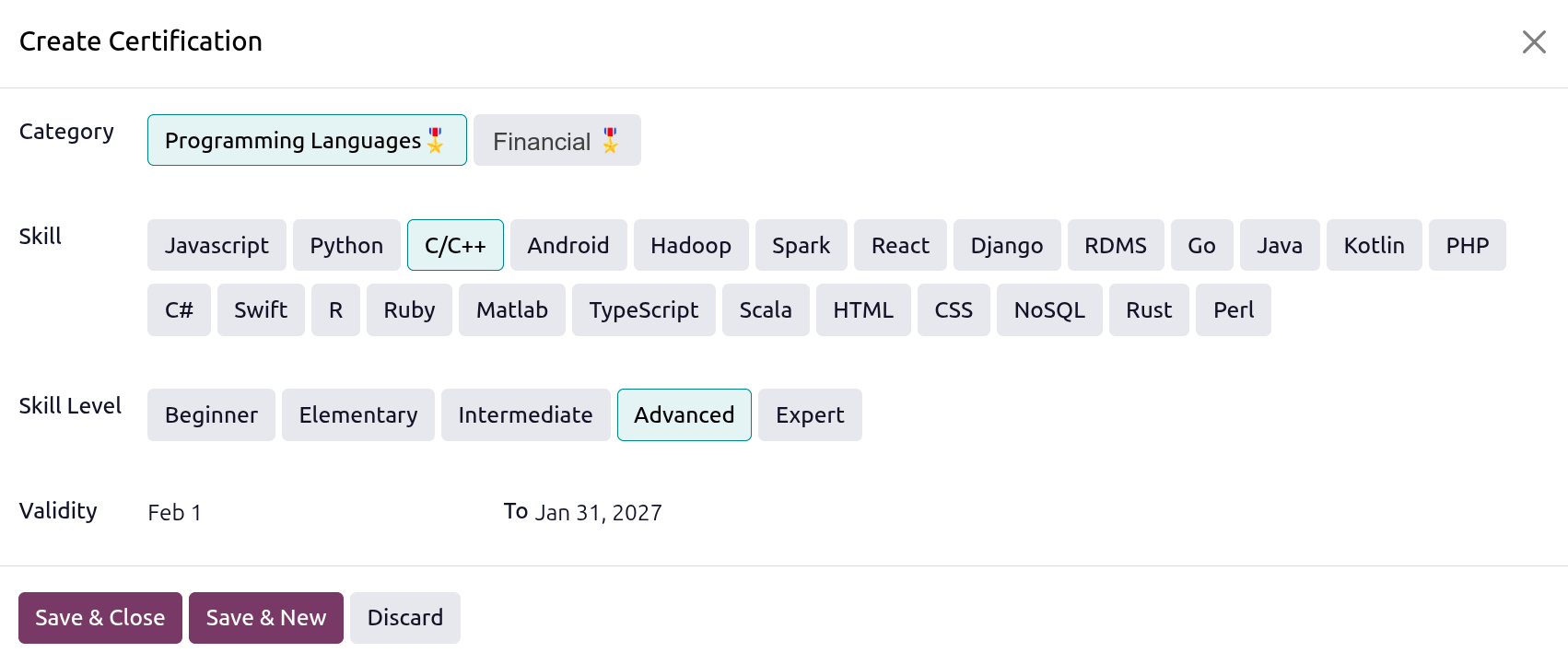
To add a certification, click Add a line in the Certifications tab and a blank Create Certification pop-up window loads. Enter the following information on the form:
Category: Click on the type of certification being added.
Skill: Click on the specific skill for the certification.
Skill Level: Click on the level the certification is for.
Validity: Click into the two fields, and select the start and end dates for the certification, using the calendar selector.
When the form is complete, click Save & New to add the certification and add another, or Save & Close to add the certification and close the pop-up window.
Personal tab
No information in the Personal tab is required to create an employee, however, some information in this section may be necessary for the company’s payroll department.
In order to properly process payslips and ensure all deductions are accounted for, it is recommended to check with the accounting department and payroll department to ensure all required fields are populated. For example, to pay employees with direct deposit, they must have a trusted account listed in the Bank Accounts field.
Enter the various information in the following sections and fields of the Personal tab. Fields are entered either using a drop-down menu, ticking a checkbox, or typing in the information.
Note
Depending on the localization setting, other fields may be present. For example, for the United States localization, a SSN No (Social Security Number) field is present.
Private contact
Email: Enter the employee’s personal email address.
Phone: Enter the employee’s personal phone number.
Bank Accounts: Enter the bank account number using the drop-down menu. If the bank account does not exist, create a new bank account and select it.
Add a bank account
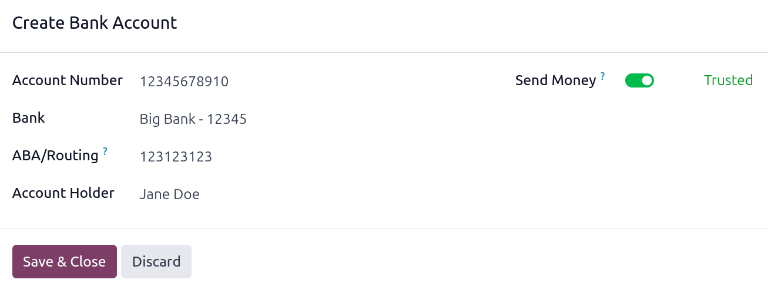
When an employee is added to the database, their bank account must also be added. To add a new bank account, type the account number into the Bank Accounts field in the Personal tab of the employee form, then click Create and edit...
A Create Bank Accounts pop-up window loads with the bank account number populating the Account Number field. Next, enter the Clearing Number (also referred to as a routing number) in the corresponding field.
The employee’s name populates the Account Holder and Account Holder Name fields by default, but can be updated if needed.
Next, select the Bank using the drop-down menu. If the bank is not already configured, click Create and edit… and a blank Create Bank pop-up window loads, with the bank name populating the Name field. Next, enter the Bank Identifier Code, also referred to as a BIC or SWIFT code. If applicable, select the Intermediary Bank using the drop-down menu. This bank acts as a facilitator between banks for international wire transfers, when needed. Enter the Bank Address, Phone, and Email in the corresponding fields. Once the form is complete, click Save, and the new bank populates the Bank field.
Click the Send Money toggle. This changes the toggle color to green, and the status changes from Untrusted in gray text, to Trusted in green text.
The Employee field is populated with the employee’s name, and cannot be modified.
Finally, add any relevant notes in the Note tab.
Important
To ensure payments are processed and sent to the bank account, mark the bank account as Trusted. Having an Untrusted bank account for an employee causes an error in the Payroll application when processing direct deposits.
If issuing paper checks or paying via cash, the Bank field does not need to be configured.
Emergency contact
This section details the person to contact in the event of an emergency.
Contact: Enter the emergency contact’s name.
Phone: Enter the emergency contact’s phone number. It is recommended to enter a phone number that the person has the most access to, typically a mobile phone.
Citizenship
This section outlines all the information relating to the employee’s citizenship. This section is primarily for employees who are working in a different country than their citizenship. For employees working outside of their home country, for example on a work visa, this information may be required. Different fields may be visible, depending on the localization installed.
Nationality (Country): Select the country the employee is from using the drop-down menu.
Non-resident: Click this checkbox if the employee lives in a foreign country.
Identification No: Enter the employee’s identification number in this field.
SSN No: Enter the employee’s social security number.
Passport No: Enter the employee’s passport number.
Family
This section is used for tax purposes, and affects the Payroll app. Enter the following information in the fields.
Disabled: Check this box if the employee is considered legally disabled.
Marital Status: Select the marital status for the employee using the drop-down menu. The default options are Single, Married, Legal Cohabitant, Widower, and Divorced.
If Married or Legal Cohabitant is selected, two additional fields appear: Spouse Legal Name and Spouse Birthdate. Enter these fields with the respective information.
Dependent Children: Enter the number of dependent children. This number is the same number used for calculating tax deductions, and should follow all tax regulations regarding applicable dependents.
Documents
This section allows for uploading any relevant documents on the employee form. Click the Upload your file button next to the corresponding document name, navigate to the file, then click Select to upload the file.
The documents that can be uploaded are:
ID Card Copy: Upload any relevant ID’s that may be required by the payroll or HR department.
Driving License: Upload the employee’s driver’s license. This field may be necessary if the employee drives as part of their job, or is given a company car to use.
SIM Card Copy: Upload a copy of the SIM card if the employee is using a work-issued mobile phone.
Internet Subscription Invoice: If the employee is receiving benefits or compensation for their internet service, upload their invoice in this field.
Note
The Internet Subscription Invoice field is for documentation purposes only. Employees must use the Expenses app to request reimbursement for expenses, or define compensation in the Payroll tab.
Personal information
This section houses information used for payroll and tax purposes.
Legal Name: Enter the employee’s legal name in this field. By default, the name entered in the general information section populates this field. This is the name that typically is used for filing taxes.
Birthday: Select the birthday of the employee using the calendar selector.
Place of Birth: Enter the city or town the employee was born in the first field, and select the country using the drop-down menu.
Gender: Select the employee’s gender from the drop-down menu. The default options are Male, Female, and Other.
Payslip Language: Select the language used when printing the employee’s payslips. Each language must be added to the database to appear in the drop-down menu.
Visa & work permit
This section should be filled in if the employee is working on some type of work permit or visa. This section may be left blank if they do not require any work permits or visas for employment.
Visa No: Enter the employee’s visa number. When entered, an Expires on field appears. Select the date the visa expires using the calendar.
Work Permit No: Enter the employee’s work permit number. When entered, an Expires on field appears. Select the date the work permit expires using the calendar.
Visa Expiration Date: Select the date the employee’s visa expires using the calendar.
Document: Click Upload your file, then navigate to the work permit or visa file in the file explorer, and click Select to upload it.
Note
Typically, an employee needs either a visa or a work permit, not both. For this reason, only one document can be added to the Document field.
Location
This section is visible for all employees, and does not require any other apps to be installed for this section to be visible. Enter the following information in this section:
Private Address: Enter the employee’s home address in this field.
Home-Work Distance: enter the number, in miles or kilometers, the employee commutes to work, in one direction. The unit of measure can be changed from kilometers (km) to miles (mi) using the drop-down menu. This field is only necessary if the employee is receiving any type of commuter benefits or tax deductions based on commute distances.
Education
This section allows for only one entry, and should be populated with the highest degree the employee has earned.
Certificate Level: Select the highest degree the employee has earned using the drop-down menu. The default options are Graduate, Bachelor, Master, Doctor, and Other.
Field of Study: Type in the subject the employee studied, such as
BusinessorComputer Science.
Payroll tab
Depending on the installed payroll localization, the sections and fields in this tab may vary considerably. Due to the specific nature of localizations and the variety of information that may be requested in this tab, it is recommended to check with the accounting department to fill out this section correctly.
The following fields are universal for all payroll localizations:
See also
Contract overview
This section details all the various details from the employee contract. Refer to the contracts document for detailed information on creating and modifying employee contracts.
Employer costs
This section details the various costs the employer incurs for the employee, including:
Yearly Cost: This field is automatically updated based on the Wage entered in the Contract Overview section, but can be modified, if needed. If it is modified, the Wage field updates to reflect the new Yearly Cost.
Monthly Cost: This field automatically displays the monthly cost according to the Yearly Cost. This field cannot be modified.
Wage on Signature: Enter the employee’s expected monthly wage according to the contract in this field.
Schedule
This section defines when the employee is expected to work. Configure the following fields:
Work Entry Source: Determine how the employee’s work entries are created in the Payroll app using the drop-down menu. Working Schedules is selected by default. If the Attendances or Planning apps are installed, their respective options are available.
Working Hours: Select the hours the employee is expected to work, using the drop-down menu. By default, a Standard 40 hours/week working schedule is selected. If the Timesheets app is installed, an Appointment Resource Default Calendar option is also available.
To view and modify the specific daily working hours, click the (Internal link) arrow at the end of the Working Hours line. Working hours can be modified or deleted here.
Note
Working Hours are related to a company’s working schedules, and an employee cannot have working hours that are outside of a company’s working schedule.
Each individual working schedule is company-specific. For multi-company databases, each company must have its own working hours set.
If an employee’s working hours are not configured as a working schedule for the company, new working schedules can be added, or existing working schedules can be modified.
Working hours can be modified in both the Employees and Payroll apps, where they are referred to as Working Schedules.
For more information on how to create or modify Working Schedules, refer to the working schedules documentation.
After the new working time is created, or an existing one is modified, the Working Hours can be selected on the employee form.
Salary adjustments tab
This Salary Adjustments tab houses all salary adjustments in a list view. Salary adjustments are wage garnishments or voluntary portions of an employee’s payslip set aside each pay period.
Add each individual salary adjustment to this tab.
Settings tab
This tab provides various fields for different applications within the database. Depending on what applications are installed, different fields may appear in this tab.
User
User: Select a user in the database to link to this employee using the drop-down menu.
Important
Employees do not need to be users of the database, and do not count towards the Axis subscription billing, while users do count towards billing. If the new employee should also be a user, the user must be created.
Timezone: Select the timezone for the employee using the drop-down menu.
Create a user
After the employee is created, click the Create User button on the upper-left corner of the employee record, and a Create User pop-up window appears.
The employee name populates the Name field by default. If the Email Address, Phone, Company, and photo fields are populated on the employee form, the corresponding fields are auto-populated on the Create User form.
Once the form is completed, click the Save button. The user is created, and populates the Related User field.
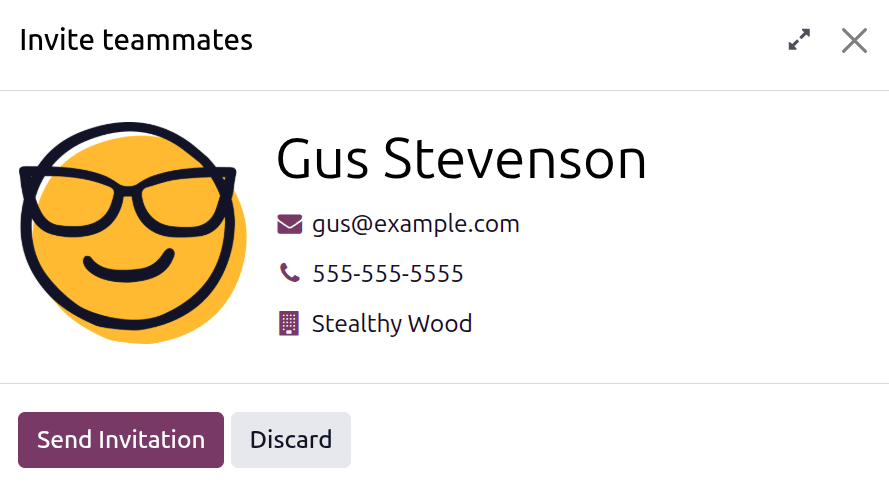
Alternatively, select the Invite teammates via email option that appears in the User drop-down menu, and an Invite teammates pop-up window loads, with the same fields as the Create User pop-up window. Fill out the form, then click Send Invitation. An email invitation is sent to the user, informing them their account has been created.
Users can also be created manually. For more information on how to manually add a user, refer to the Users document.
Approvers
To see this section, the user must have either Administrator or Officer: Manage all employees rights set for the Employees application. For the category to appear, the respective app must be installed. For example, if the Time Off app is not installed, the Time Off approver field does not appear. Only one selection can be made for each field.
Important
The users that appear in the drop-down menu for the Approvers section must have Administrator rights set for the corresponding human resources role.
To check who has these rights, go to the and click Manage Users in the Users section. Then, click on an employee and go to the Access Rights tab. Scroll to the Human Resources section and check the various settings.
In order for the user to appear as an approver for Expenses, they must have either Team Approver, All Approver, or Administrator set for the Expenses role.
In order for the user to appear as an approver for Time Off, they must have either Officer:Manage all Requests or Administrator set for the Time Off role.
In order for the user to appear as an approver for Timesheets, they must have either Officer:Manage all contracts or Administrator set for the Payroll role.
In order for the user to appear as an approver for Attendances, they must have Administrator set for the Payroll role.
HR Responsible: Select the user responsible for validating the employee’s contracts using the drop-down menu.
Expense: Select the user responsible for approving all expenses for the employee using the drop-down menu.
Time Off: Select the user responsible for approving all time off requests from this employee using the drop-down menu.
Timesheet: Select the user responsible for approving all the employee’s timesheet entries using the drop-down menu.
Attendance: Select the user responsible for approving all attendance entries for the employee using the drop-down menu.
Tip
If any approver field is left empty, the approval is done by an Administrator or Approver.
Application settings
This section affects the Fleet and Manufacturing apps. Enter the following information in this section.
Hourly Cost: Enter the hourly cost for the employee, in a
##.##format. This cost is factored in when the employee is working at a work center.Note
Manufacturing costs are added to the costs for producing a product if the value of the manufactured product is not a fixed amount. This cost does not affect the Payroll application.
Fleet Mobility Card: If applicable, enter the Fleet Mobility Card number. This is typically a credit card for gas purchases or other vehicle-related costs.
Appraisal
This field is only visible if the Appraisals application is installed.
Next Appraisal Date: The date automatically populates the date of the next appraisal which is computed according to the settings configured in the Appraisals application. This date can be modified using the calendar selector.
Planning
This section is only visible if the Planning app is installed, as this section affects what the employee can be assigned in the Planning app.
Roles: Select all the roles the employee can perform using the drop-down menu. There are no preconfigured roles available, so all roles must be configured in the Planning app. There is no limit to the number of roles assigned to an employee.
Default Role: Select the default role the employee will typically perform using the drop-down menu. If the Default Role is selected before the Roles field is configured, the selected role is automatically added to the list of Roles.
Attendance/Point of Sale/Manufacturing
This section determines how employees sign in to either the Attendances. Point Of Sale, or Manufacturing apps, and only appear if any of those apps are installed.
PIN Code: Enter the employee’s pin number in this field. This code is used to sign in and out of Attendances app kiosks, and a POS system.
RFID/Badge Number: Click Generate at the end of the RFID/Badge Number line to create a unique number. Once generated, the number populates the RFID/Badge Number field, and Generate changes to Print Badge. Click Print Badge to create a PDF file of the employee’s badge. The badge can be printed and used to log into a POS system or check-in on an Attendances app kiosk.
If the employee uses an RFID token or already has an ID badge issued with a barcode, click Read a badge and the system allows the barcode or RFID token to be read. Once read, the number populates the RFID/Badge Number field.
Overtime Ruleset: Select the overtime rules to be used when calculating overtime for the employee using the drop-down menu.