
Locations
A location is a specific space within a warehouse. This can be a shelf, room, aisle, etc.
Configuration
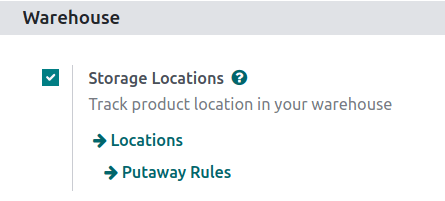
To create specific storage locations, enable the Storage Locations feature by going to . In the Warehouses section, tick the Storage Locations checkbox. Then, click Save.
Note
Typically, the Storage Locations feature is used with Multi-Step Routes, which controls how products move between locations.
Create new location
After enabling Storage Locations, go to .
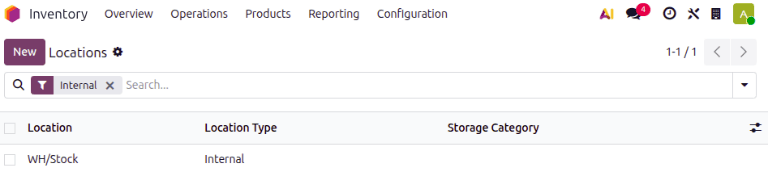
On this page, click New. The new location form can then be configured as follows:
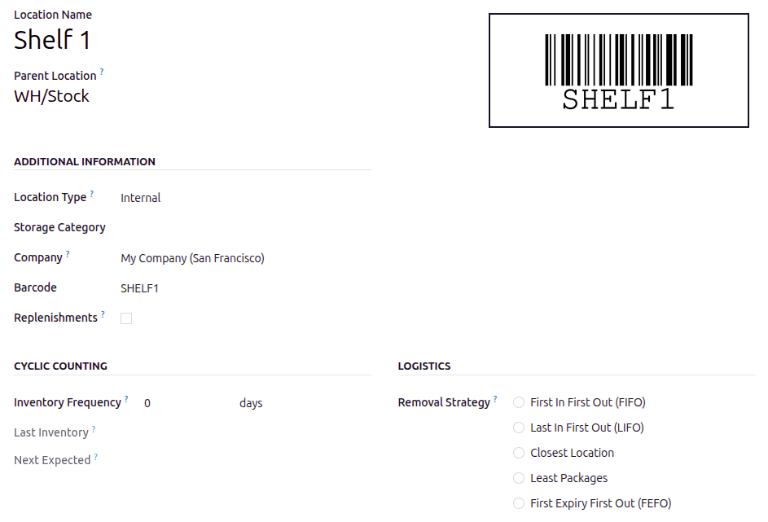
Location Name: recognizable name of the location.
Parent Location: the location within which the new location exists. After the location is created, it is listed on the Locations page using a location hierarchy, to describe how a specific location fits within larger areas of the warehouse.
Example
In
WH/Stock/Zone A/Refrigerator 1,Refrigerator 1is the location name,Zone Ais the parent location, and everything before it is the path showing where this spot is within the warehouse.
Additional Information section
In addition to the required fields above, configure the following location fields to ensure the location serves its intended purpose in the database:
Location Type: from the drop-down menu, choose Vendor, Virtual, Internal, Customer, Inventory Loss, Production, or Transit to categorize the location. For details on each location type, refer to the Location Types section.
Storage Category: only available with the Storage Categories feature enabled in .
Company: the company the location belongs to.
Barcode: used with the Barcode app, enter the barcode to identify actions at this location when scanned.
Replenishments: used for configuring routes, tick this checkbox to set the location as a destination for receiving products from Buy, Manufacture, or other procurement routes, ensuring products are correctly supplied to the warehouse.
In the Cyclic Counting section, change the value in the Inventory Frequency
field from the default 0, if necessary.
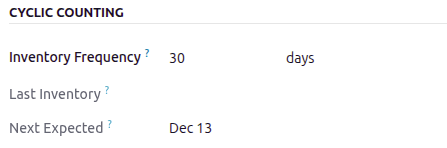
When different than 0, the inventory count dates for products stored at this location are
automatically set at the defined frequency.
In the Logistics section, in the Removal Strategy field, click the drop-down menu and select the removal strategy for how items should be removed from this location.
Cyclic Counting section
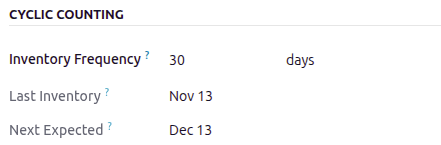
To schedule regular inventory counts at this location, set the Inventory Frequency field
to the desired interval. By default, it is set to 0 (no scheduled counts).
For example, setting this field to 30 schedules a count every thirty days. For more specifics on
setting up and using this feature, refer to the Cycle Counts documentation.
The Last Inventory field displays the date the last inventory count at this location occurred. When scheduled inventory counts are enabled, the Next Expected field displays the date of the next inventory count.
Example
With inventory counts scheduled to occur every 30 days, and the Last Inventory
count occurring on November 13, the Next Expected is December 13.
Logistics section
In the Logistics section of the locations form, optionally select a Removal Strategy to determine the order and priority of how products are picked from inventory. The options are: First In First Out (FIFO), Last In First Out (LIFO), Closest Location, Least Packages, and First Expiry First Out (FEFO).
See also
Current stock at location
To view the current stock at a single location, go to , and select the desired location.
Next, click the Products smart button to get a list of all products at the location.
Example
A list of current stock at Shelf 2 consists of 90 cable management boxes.
