
Lazada Order Management
This guide explains how to manage Lazada orders, inventory, deliveries, and sales reporting within Axis using the Lazada Connector. It covers product catalog mapping, order synchronization, delivery processes, platform fee handling, and sales analysis to streamline your marketplace operations in Southeast Asia.
Product Catalog Mapping
New Axis Customers with No Existing Products
If you are starting a new Axis database and your products exist only on Lazada, you can import your Lazada product catalog into Axis.
1. Export Lazada Catalog: In Lazada Seller Center
<https://sellercenter.lazada.com.ph/>, use the Bulk Manage drop-down
to export your product catalog, including Lazada SKUs.
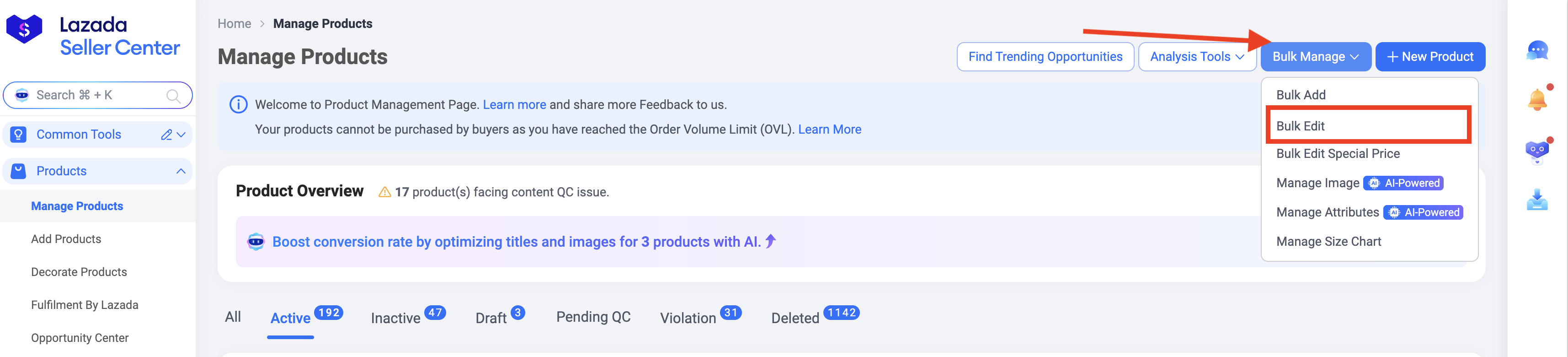
Import into Axis: Import the exported catalog into Axis via . Map the Lazada SKU to the Internal Reference field in Axis to link your Lazada and Axis products.
Existing Axis Customers with Products Already in Axis
If you have an existing product catalog in Axis, map your Lazada listings to these products.
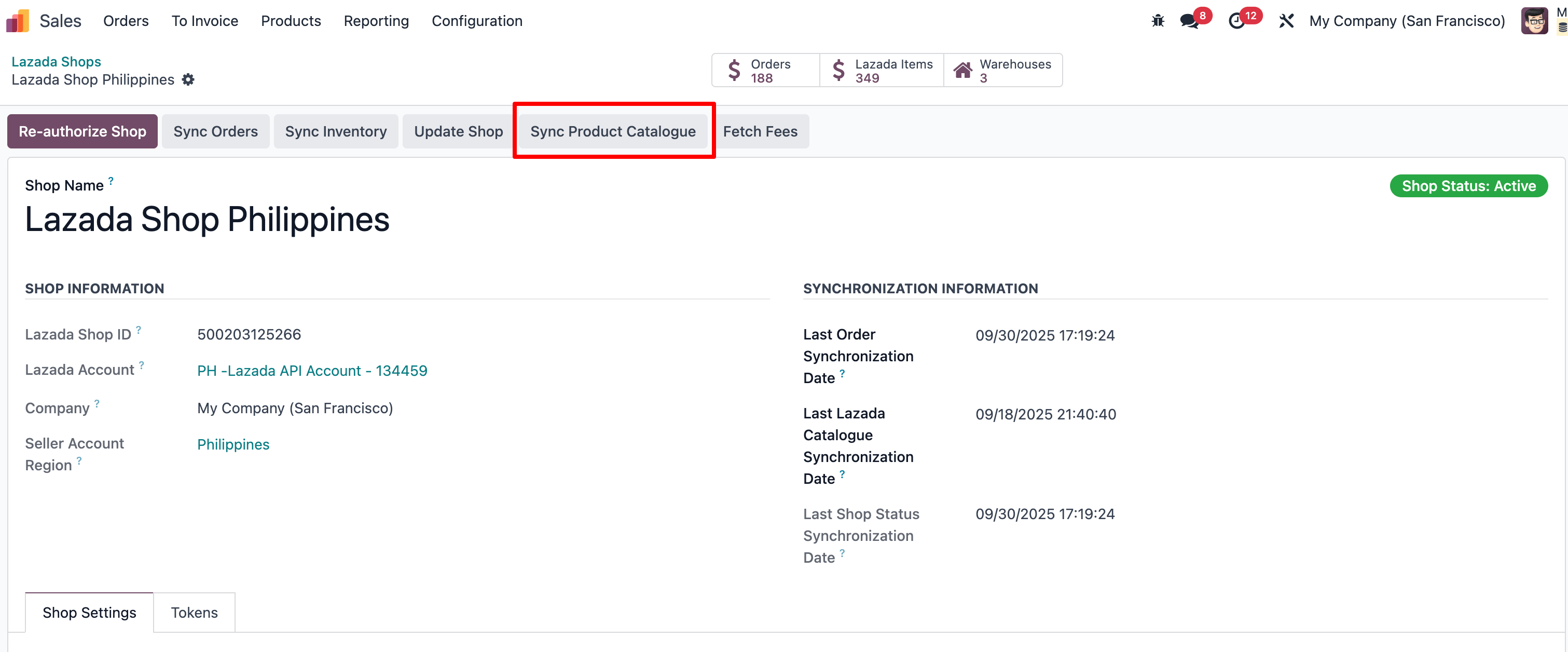
Use the Sync Product Catalogue button in Axis to automatically match active Lazada products.
Important
Product catalog synchronization is an automated process initiated from the synchromization. Ensure accurate SKU mapping to avoid duplication errors.
Order Synchronization
Orders are automatically fetched from Lazada and synchronized in Axis at regular intervals (every 60 minutes).
Synchronization Scope: Only orders with status READY_TO_SHIP or PROCESSED are fetched, as these require shipping action.
Status Updates: When an order is canceled on Lazada, its status updates in Axis. However, canceling an order in Axis does not reflect on Lazada.
Customer Creation: For each synchronized order, Axis creates a sales order and a customer (contact) if the customer hasn’t been previously imported or doesn’t exist in the database.
Note
Only orders requiring shipment are synchronized. Orders with statuses SHIPPED, CANCEL, UNPAID, or COMPLETED are excluded during synchronization.
Force Synchronization
To synchronize an order whose status hasn’t changed since the last synchronization:
Navigate to .
Select the Lazada Shop and modify the Last Order Sync date under Synchronization Information to a date prior to the order’s last status change.
Save to trigger synchronization.
Tip
In Debug Mode, access the Lazada account in Axis and click Sync Orders to immediately synchronize orders or Sync Inventory for inventory updates.
Manage Deliveries in FBM
For FBM orders, the Lazada Connector creates a picking in the app, along with a sales order and customer record, upon synchronization.
Arrange Shipment: Confirm the picking in Axis, then navigate to Lazada Seller Center and click Arrange Shipment to generate the shipping label and tracking number.
Fetch Shipping Label: Axis retrieves the shipping label and tracking number, attaching them to the corresponding delivery order.
Validate Stock Out: Validate the stock movement in Axis to update inventory levels and confirm the order has left the warehouse.
Lazada Delivery Statuses
Understanding Lazada delivery statuses is crucial for effective order management:
Package Pending: The package has arrived at the logistics facility but is awaiting receipt, tagging, or processing in the warehouse system.
Package Confirmed: The package has been packed by the seller or warehouse and is confirmed ready for courier pickup or dropoff.
Ready to Ship: The order is ready for shipment arrangement.
Shipment Arranged: The seller has arranged shipment and received a tracking number from the logistics provider.
Shipped: The parcel has been dropped off or picked up by the logistics provider.
Cancelled: The order has been canceled.
Pickup Failed: The logistics provider failed to pick up the parcel, requiring the seller to rearrange shipment.
Important
Lazada requires a tracking reference for each delivery. If the carrier doesn’t provide one automatically, set it manually in Lazada Seller Center. Check supported logistics providers for your region (e.g., Malaysia).
Order Fulfillment Process
New Order Creation: Lazada orders are automatically created in Axis as sales orders.
Arrange Shipment on Lazada: Arrange shipment in Lazada Seller Center, selecting a logistics provider and generating a shipping label.
Fetch Shipping Label: Axis imports the shipping label (delivery note) and tracking number, associating them with the sales order.
Validate Stock Out: Confirm the stock movement in Axis to reduce inventory levels.
Inventory Update on Lazada: Axis pushes updated stock levels to Lazada to prevent overselling.
Invoice and Register Payments
Due to Lazada’s policy of not sharing customer email addresses, invoices cannot be sent directly from Axis. Instead:
Issue Invoices: Generate invoices in Axis and manually upload them to Lazada Seller Center.
Register Payments:
Create a dedicated Bank Journal (e.g., “Lazada Payments”) with a Bank and Cash intermediary account.
Since Lazada processes weekly or monthly batch payments, select all invoices linked to a payment in Axis.
Use Batch Deposit as the Payment Method, select the invoices, and go to .
Reconcile Payments: When Lazada deposits the balance, record it in the bank statement and credit the Lazada intermediary account.
Tip
Apply the same process for vendor bills related to Lazada commissions.
Analyzing Lazada Sales with Axis’s Reporting
Axis’s dashboard consolidates sales data from all channels. To analyze Lazada sales specifically:
Set Up Sales Teams:
Navigate to .
Assign a dedicated sales team to each Lazada shop for isolated reporting.
Filter Sales Data: Use the dashboard filters to view sales data for the assigned Lazada sales team.
Tip
Configure separate sales teams for each Lazada marketplace to generate detailed performance reports.